
How to add a website to your Mac like an app
Your most-used websites can sit in the Dock or on the desktop and open in their own window, like any other Mac app. Here are four ways to do it and how they differ.

Since macOS Sonoma, Safari can turn any page into a web app: a separate application with its own Dock icon, window and settings. Chrome and Edge have offered something similar for longer, and every browser can still drop a simple link into the Dock. Which one you choose decides whether the site opens in its own window, whether it remembers your login and where you go to remove it.
Method 1 · built inSafari: Add to Dock
Requires macOS Sonoma 14 or later.
- Open the website in Safari and go to the page you want the app to start on.
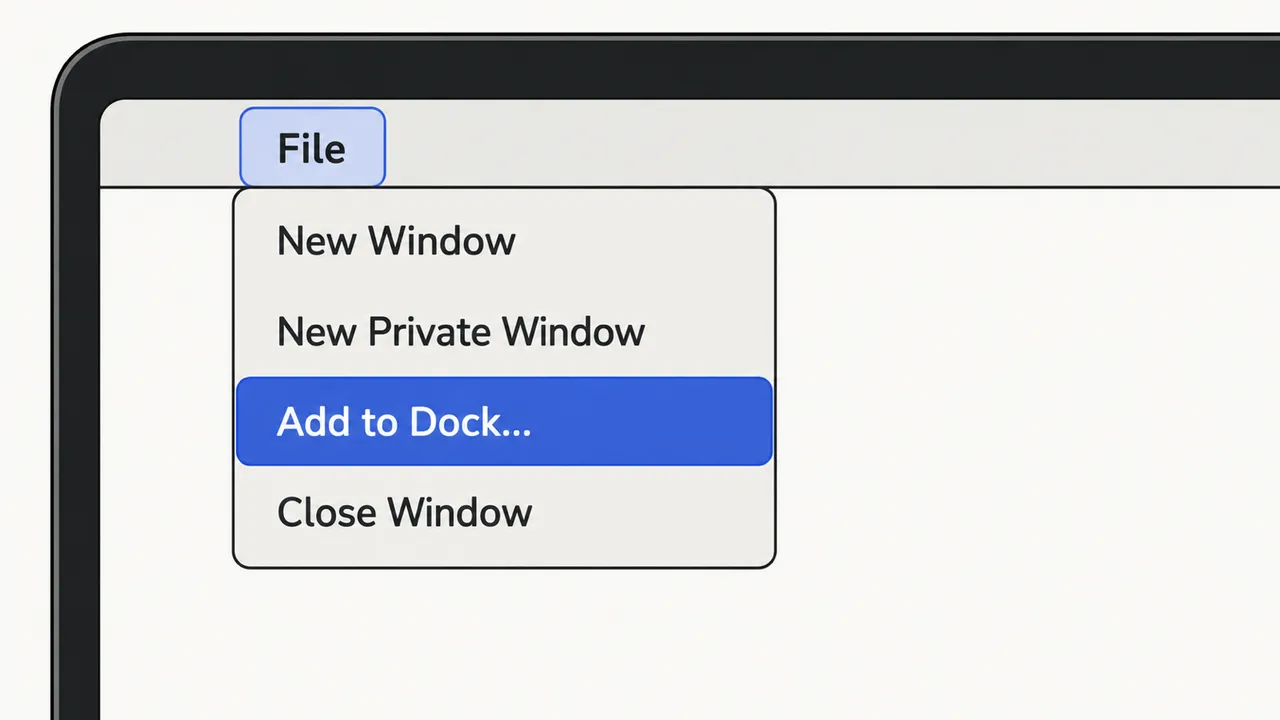
- Choose File › Add to Dock… from the menu bar. You can also click the Share button in the toolbar and choose Add to Dock.
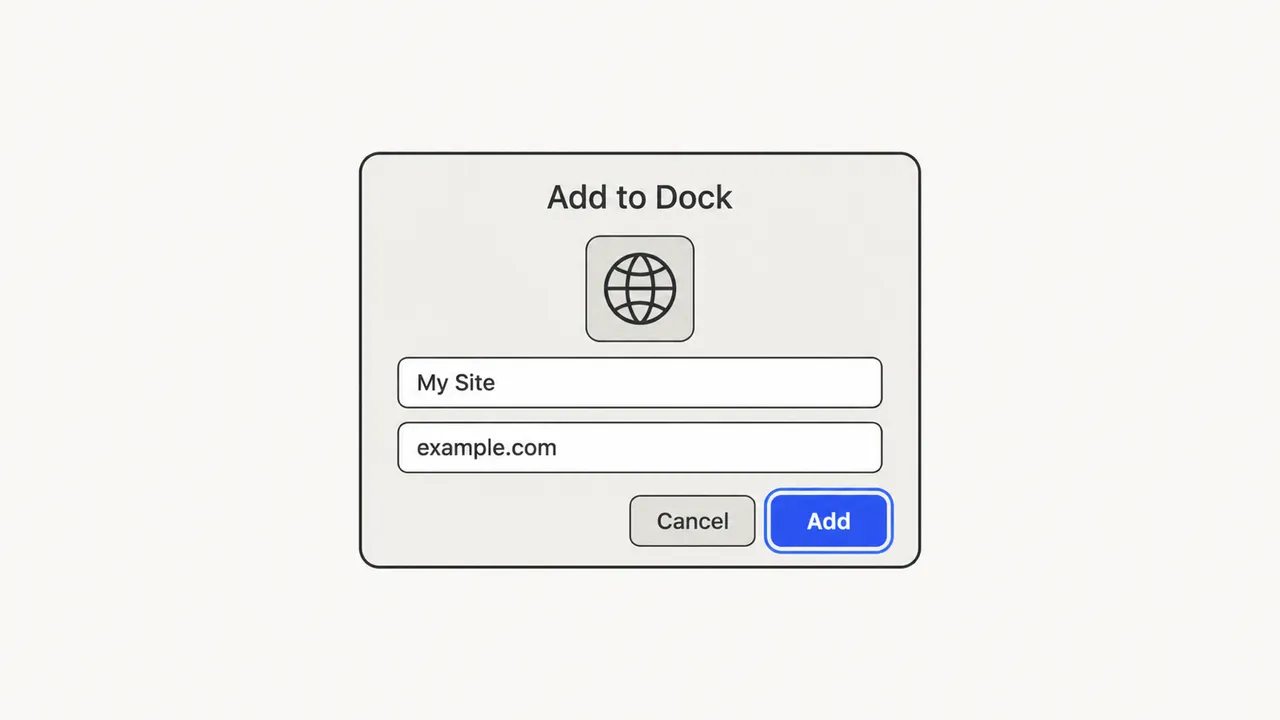
- Shorten the name if you like. It is what appears under the icon and in Spotlight.
- Click Add. The icon appears in the Dock and the site opens in a new window.
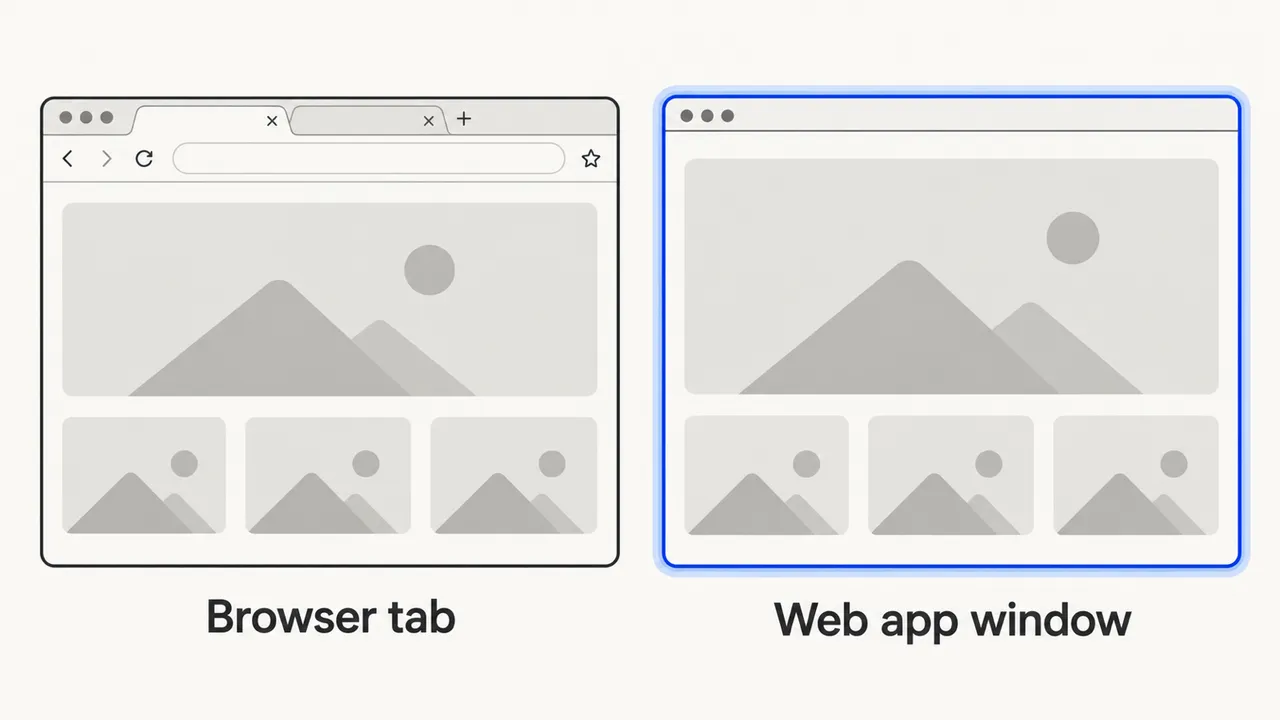
The web app is saved in the Applications folder inside your home folder, so it also shows up in Launchpad and Spotlight. Its window has a slim toolbar instead of tabs and an address bar. Open the app’s own menu and choose Settings to show navigation controls or change how it behaves.
A Safari web app is not a bookmark. It is a separate app with its own window, its own Dock icon and its own cookies.
That last point matters: Safari copies the site’s cookies when you create the web app, so you usually start signed in. From then on the two keep separate website data, so signing out in Safari does not sign you out of the web app.
Method 2 · Google ChromeChrome: Install page as app
- Open the website in Chrome.
- Click ⋮ › Cast, save, and share › Install page as app…, or choose Create shortcut… and tick Open as window.
- Click Install. The site opens in its own window and its icon appears in the Dock.
- Right-click the Dock icon and choose Options › Keep in Dock, or it disappears when you quit.
Chrome apps share cookies with the Chrome profile that created them, so you stay signed in everywhere. They are stored in a Chrome Apps folder inside your home folder’s Applications folder.
Method 3 · Microsoft EdgeEdge: Install this site as an app
- Open the website in Edge.
- Click … › Apps › Install this site as an app, then Install.
- Right-click the new Dock icon and choose Options › Keep in Dock.
This is the natural choice if you already use Edge for work accounts. Manage installed sites at edge://apps.
Method 4 · any browserDrag a link to the Dock
Drag the address (or the small icon beside it) from the address bar to the right-hand end of the Dock, next to the Trash and Downloads. You cannot drop links among the apps on the left.
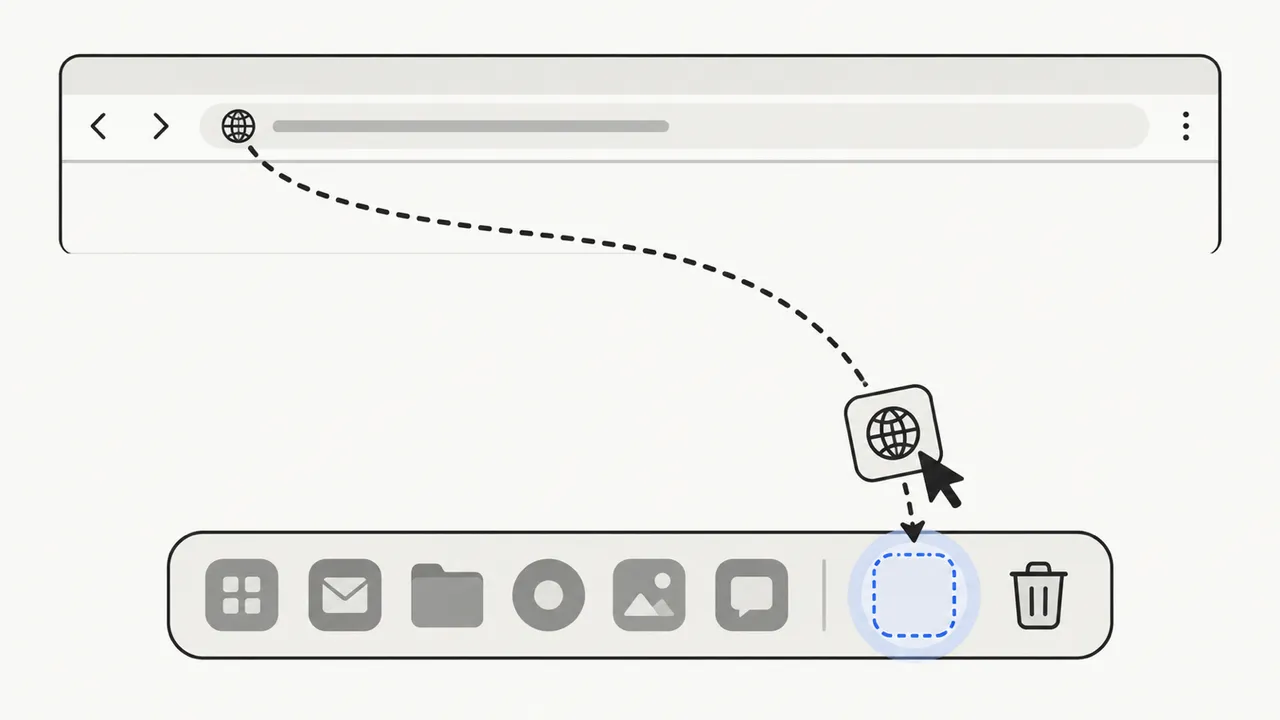
Clicking the link opens the page as a normal tab in your default browser. It is the quickest method, but you get no separate window and only a generic icon.
Which method should you use?
| Safari web app | Chrome app | Edge app | Dock link | |
|---|---|---|---|---|
| Own window | Yes | Yes | Yes | No, a browser tab |
| Cookies and login | Copied once, then separate | Shared with Chrome profile | Shared with Edge profile | Your default browser |
| Site icon in Dock | Yes | Yes | Yes | Generic |
| Needs | macOS Sonoma 14+ | Chrome | Edge | Nothing |
Use the Safari web app if Safari is your main browser and you want a clean, separate window, for example for mail, chat or a dashboard you keep open all day. Use Chrome or Edge if your accounts and extensions live there. Use a Dock link when you just want a one-click bookmark.
Removing a website from the Dock
Right-click the icon and choose Options › Remove from Dock. That only removes the shortcut. To delete a Safari web app completely, open Finder, choose Go › Home, open Applications and move the app to the Trash. Chrome apps are in the Chrome Apps folder there; Edge apps can be uninstalled from edge://apps.
On Windows or a Chromebook? The desktop shortcut guide covers Chrome, Edge and Windows shortcuts.
Giving the same app to other Mac users?
Each of these methods works only on the Mac where you set it up. WebToApp builds a downloadable .app for your website, with your name and icon, plus Windows, Linux, Android and iPhone versions. macOS may ask people to approve it the first time.
Questions about websites in the Dock
Which macOS version do I need for Safari’s Add to Dock?
macOS Sonoma 14 or later. On older versions, use Chrome or Edge to install the site as an app, or drag the address to the Dock as a link.
How do I put a website on my Mac desktop instead?
Drag the address from the Safari or Chrome address bar onto the desktop. macOS creates a .webloc file that opens the page in your default browser when you double-click it.
Does a Safari web app keep me signed in?
Usually, yes. Safari copies the site’s cookies when you create the web app, so you start signed in. After that the web app keeps its own website data, separate from Safari.
Can a website in the Dock send notifications?
Yes, if the website supports web push. Safari web apps ask for permission like an app, and you manage them in System Settings › Notifications.
Why is Add to Dock missing from Safari’s File menu?
Your Mac is running a version before macOS Sonoma, or you are in a Private window. Update macOS, or use one of the other methods in this guide.
Is a web app the same as downloading the app?
No. A web app is a window onto the website and needs it to be online. If the company offers a native Mac app, that may work offline and integrate more deeply.