
Create shortcut is greyed out in Chrome
It is unavailable on Chrome’s own pages (chrome://) and in Incognito or Guest windows. Open the website in a regular window.
A website icon on the desktop saves you opening a browser and typing the address. There are four ways to make one. The fastest takes ten seconds; the best one opens the site in its own window, like an app.
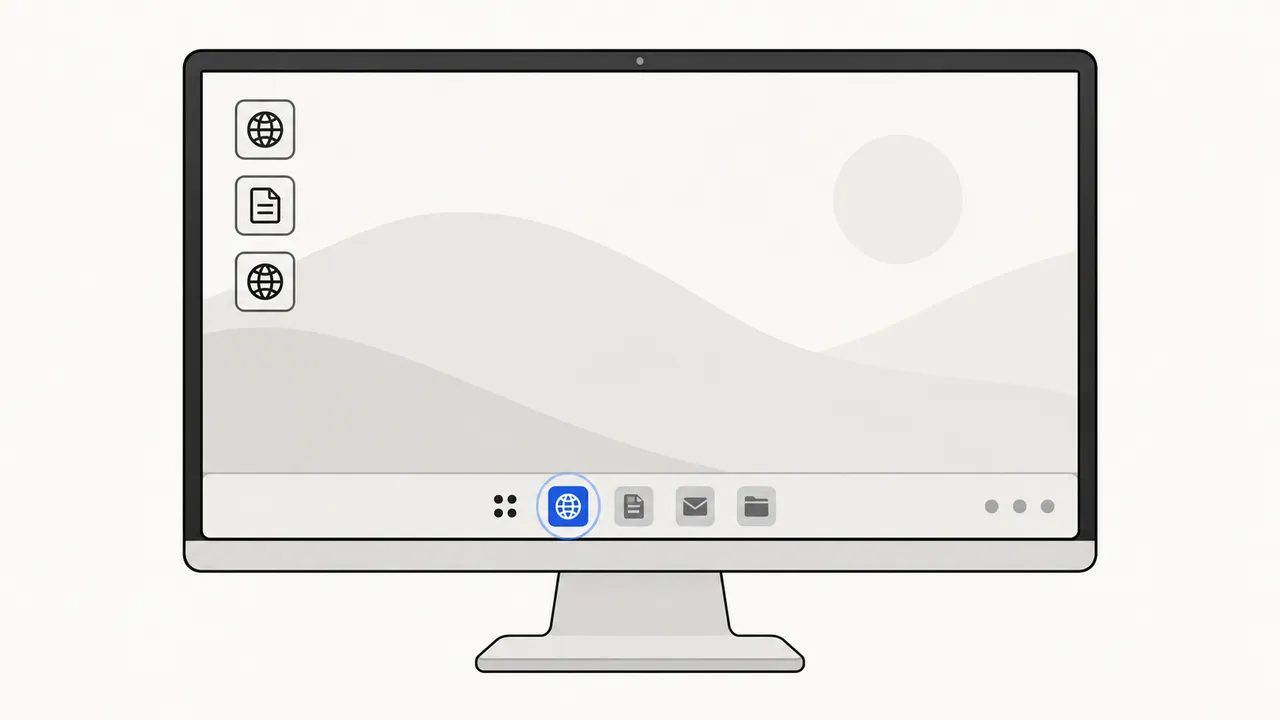
| Method | Works on | Opens in | Taskbar pin | Custom icon |
|---|---|---|---|---|
| 1. Drag the address | Windows, any browser | A tab in your default browser | No | Yes |
| 2. Chrome Create shortcut | Windows, Mac, Linux, ChromeOS | Its own window (optional) | Yes | Site icon |
| 3. Edge Install as app | Windows, Mac | Its own window | Yes | Site icon |
| 4. Windows New › Shortcut | Windows 10 and 11 | A tab in your default browser | No | Yes |
On a Mac? Follow the Mac Dock guide.
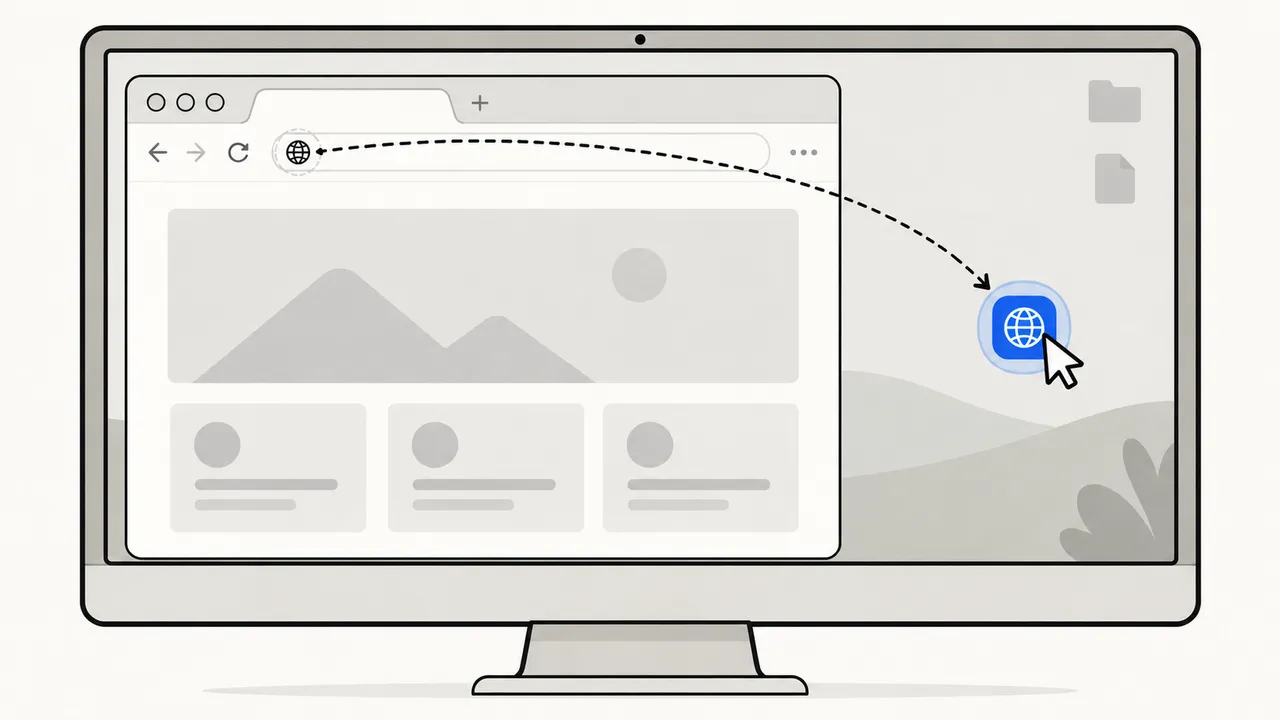
This creates an internet shortcut (.url file). Rename it with F2. It always opens in a normal browser tab.
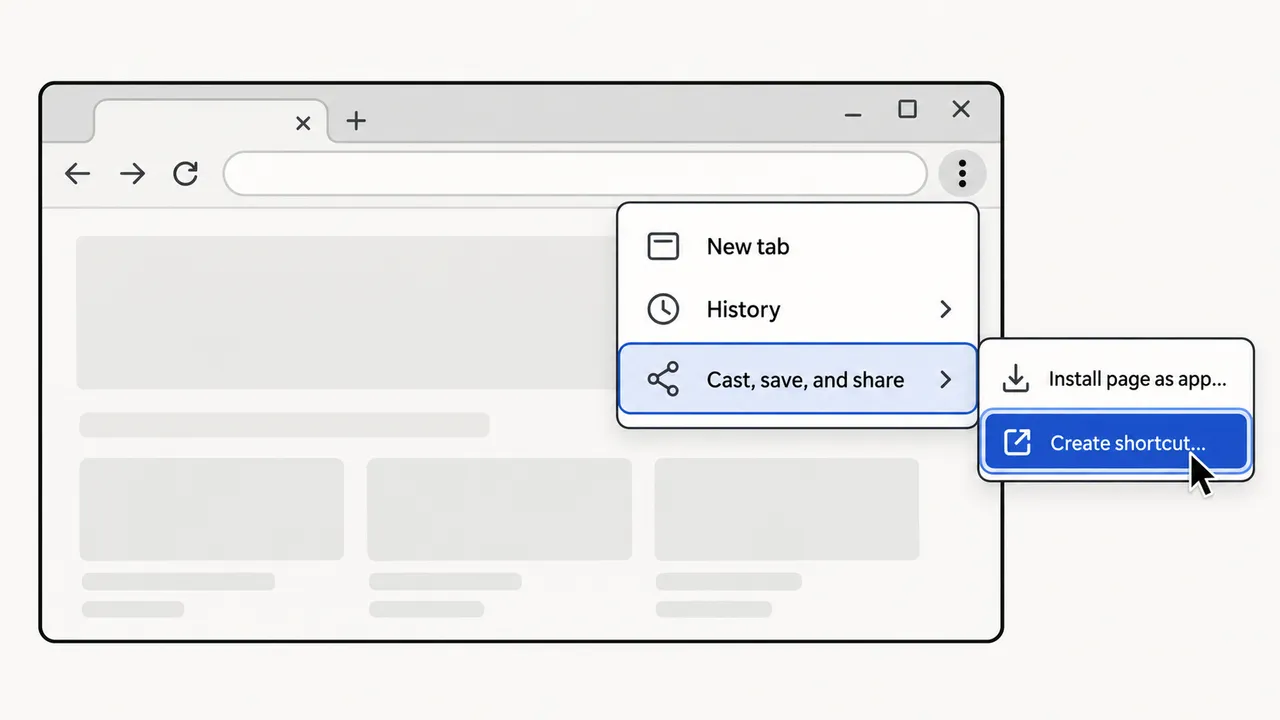
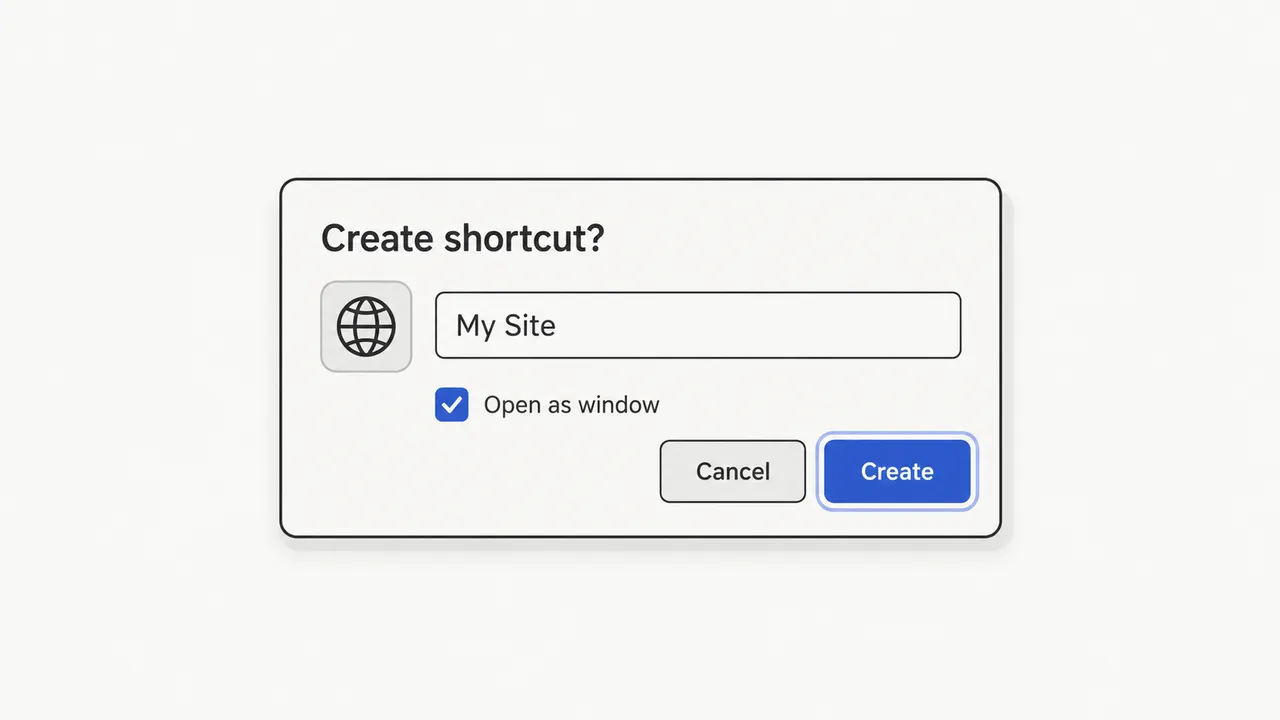
Chrome puts the shortcut on the desktop and in the Start menu. With Open as window, the site gets its own taskbar button and no tabs or address bar. Recent Chrome versions also offer Install page as app… in the same menu, which does the same thing for sites built as web apps.
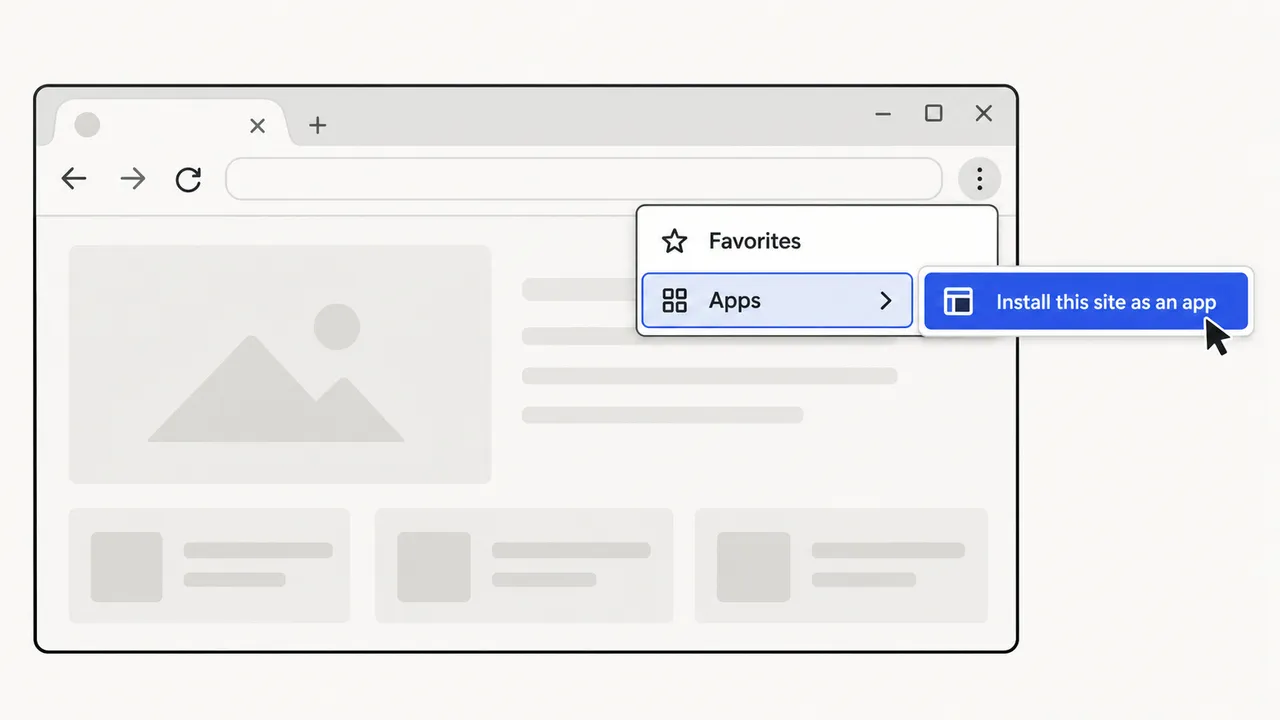
Manage or uninstall these apps later at edge://apps.
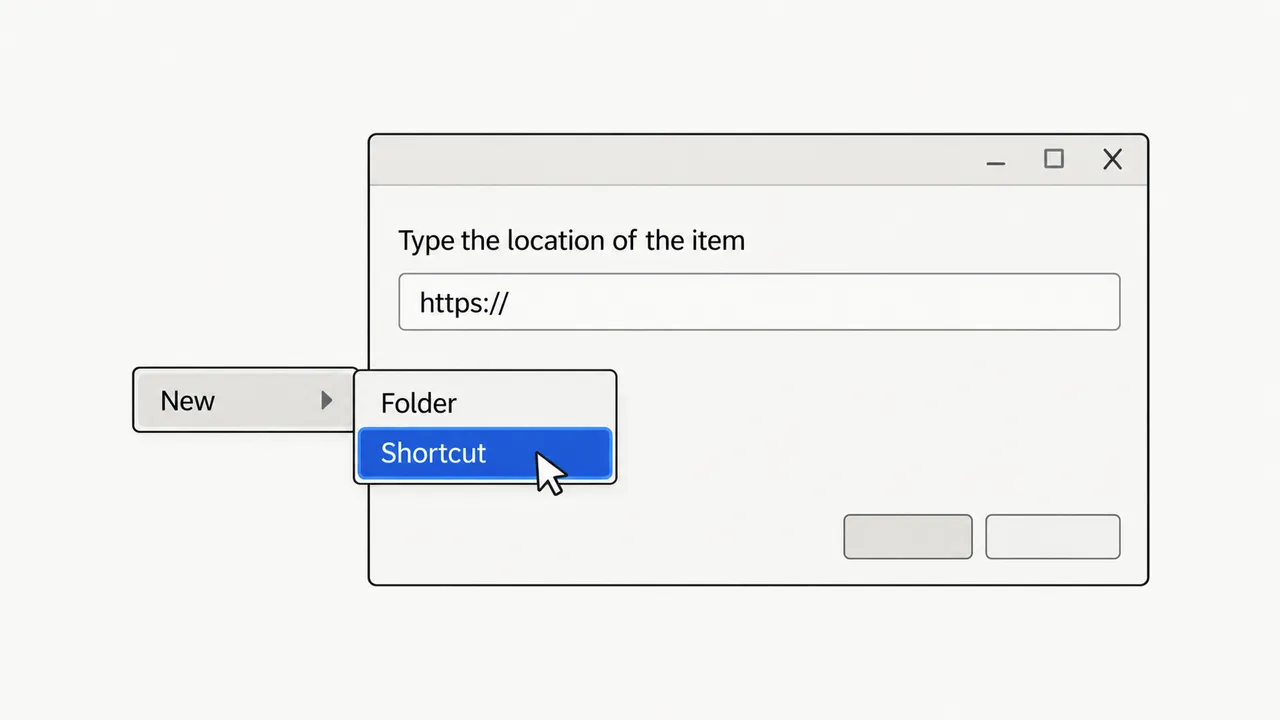
Useful when you cannot drag (for example in a full-screen remote desktop) or want to type the exact address, including a specific page.
Next step
Windows only pins apps, not .url shortcuts. So create the website shortcut with method 2 (with Open as window) or method 3 first. Then open it, right-click its taskbar button and choose Pin to taskbar.
A dragged shortcut can still go on the Start menu: right-click it and choose Pin to Start on Windows 11, or copy it into the Start Menu Programs folder.
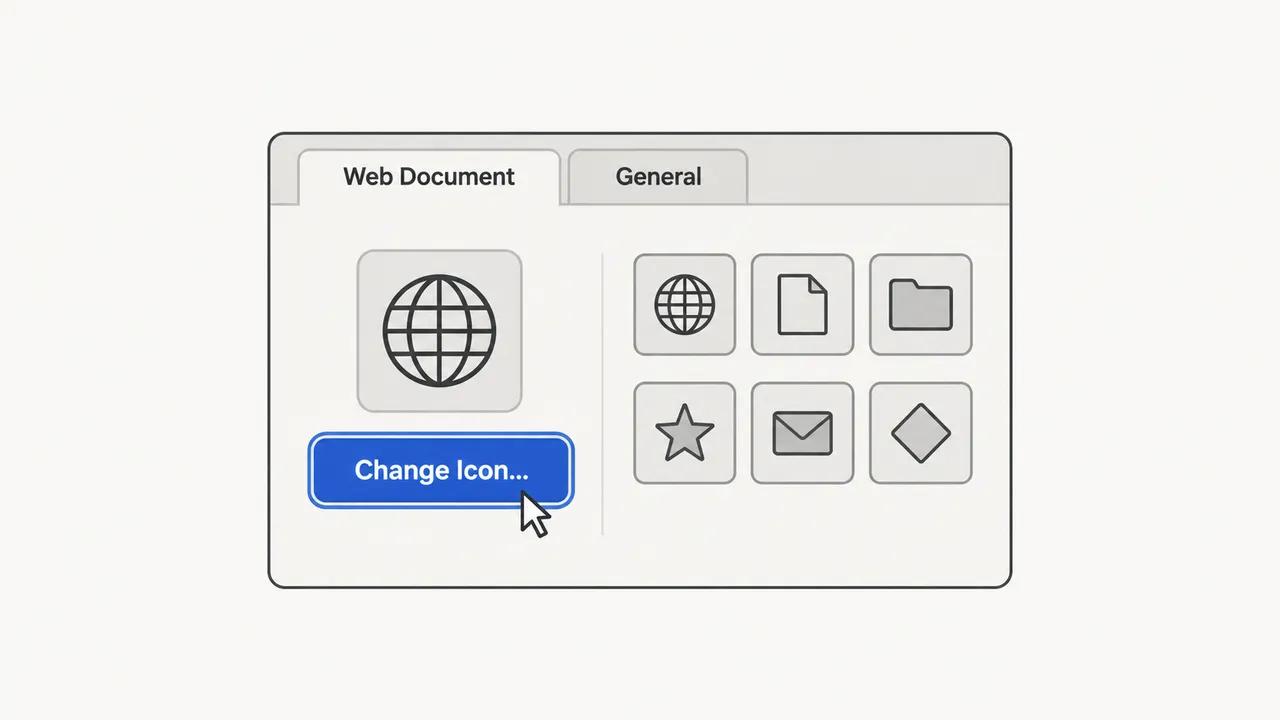
Make it yours
.ico file, then click OK and Apply.Windows needs .ico files. Convert a PNG first, and keep the file somewhere permanent: if you delete it, the shortcut falls back to a blank icon.
It is unavailable on Chrome’s own pages (chrome://) and in Incognito or Guest windows. Open the website in a regular window.
Dragged shortcuts follow your default browser. Change it in Windows Settings › Apps › Default apps, or use the Chrome or Edge method instead.
The browser window is probably maximised or you are dragging the address text. Restore the window and drag the icon to the left of the address.
The site has no favicon Windows can use. Set a custom icon with the steps above.
Shortcuts are made one PC at a time. WebToApp packages your website as a Windows launcher with its own icon and window size, plus Mac and Linux versions, that you can hand out as a download. It uses the browser already installed; it is not an EXE.
FAQ
Drag the padlock or site icon from any browser’s address bar onto the desktop, or right-click the desktop and choose New › Shortcut, then paste the web address. Both work with Edge, Firefox and other browsers.
Windows does not pin internet shortcuts (.url files) directly. Create the shortcut with Chrome’s Open as window option or install the site with Edge; those become apps that can be pinned.
Dragged and New › Shortcut shortcuts open in your default browser. Chrome and Edge app shortcuts always open in the browser that created them.
Yes. Use Chrome’s menu, Cast, save, and share › Create shortcut. The shortcut appears in the launcher and can be pinned to the shelf; Chromebooks have no desktop icons.
Drag the address from Safari or Chrome to the desktop to create a .webloc link, or add the site to the Dock as a web app. The Mac Dock guide covers both.
Yes for dragged and New › Shortcut shortcuts, which use your normal browser profile. Chrome and Edge app windows share the profile that created them too.